

Find and click the BILL PAY button on the top right.
That will take you to the login screen. If you have an account, login with your information. If you don’t, this is where you create one. On the right side, enter the statement pin from the statement and the zip code from the address.
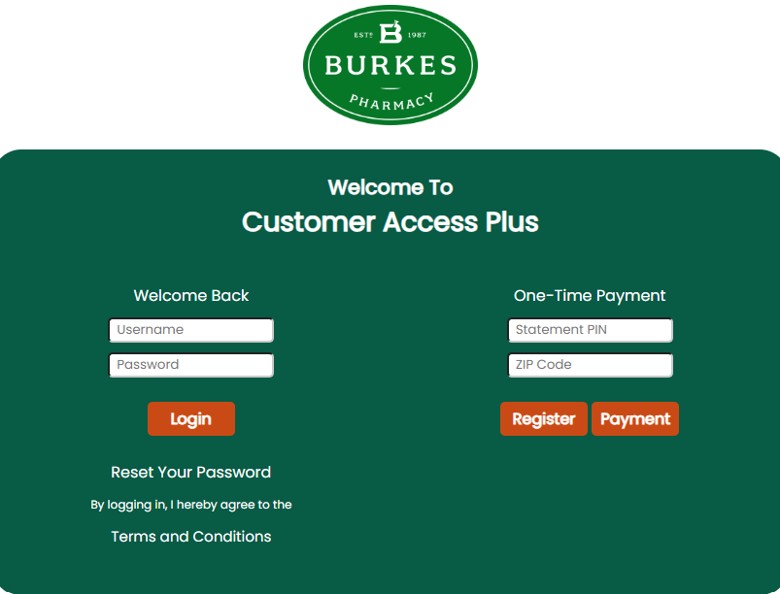
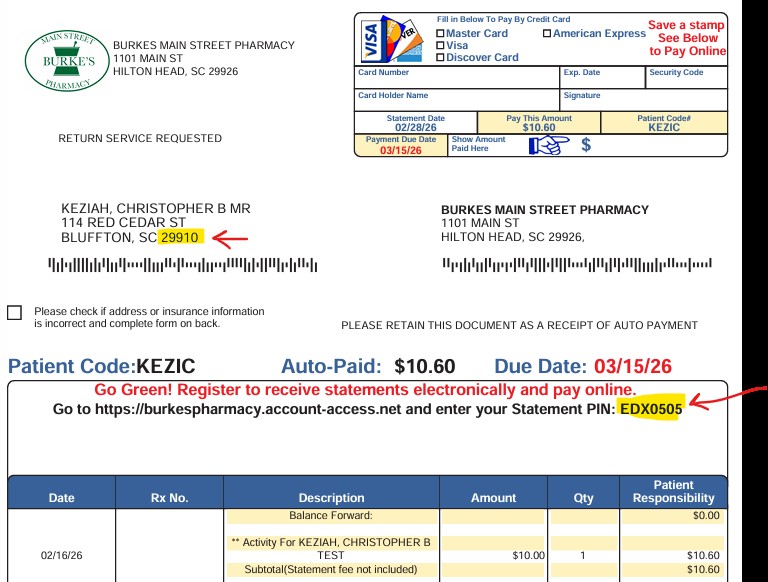
The statement pin is located on the right above the invoice line items shown here with a red arrow. The zip code is the one in the customer address.
Once you enter this information, you can finish creating your account.
Once in your account, you click one of these blue number to navigate to the statement you want to view or pay.

The next screen will show the list from your previous selection. Check 1 or multiple boxes if necessary and click “View” to view the statement or “Pay” to pay the statement or set up autopay.
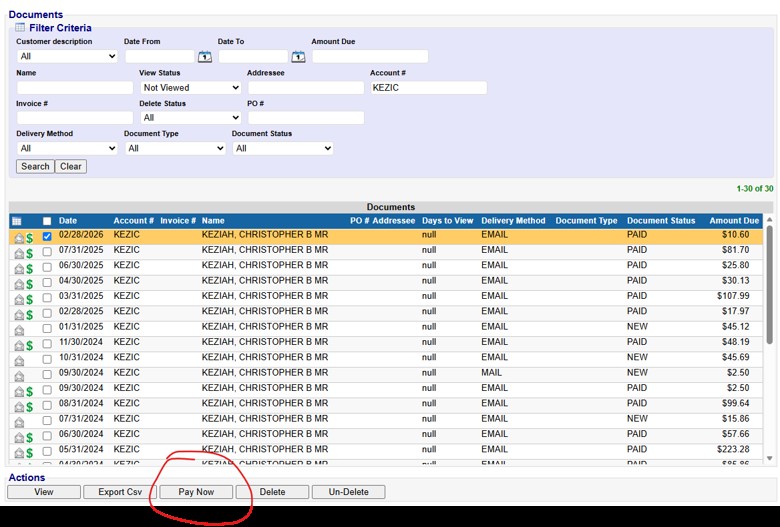
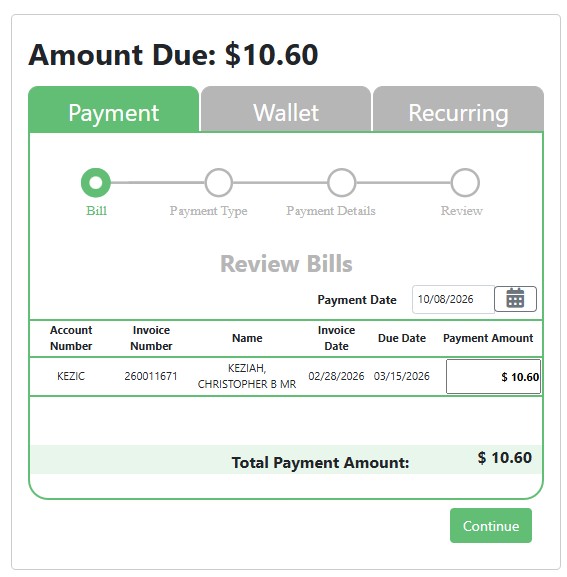
Once you click Pay Now this screen will populate. This shows the balance due. Click “Continue”
If you have a card on file already, it will show here. If not, you can add one.
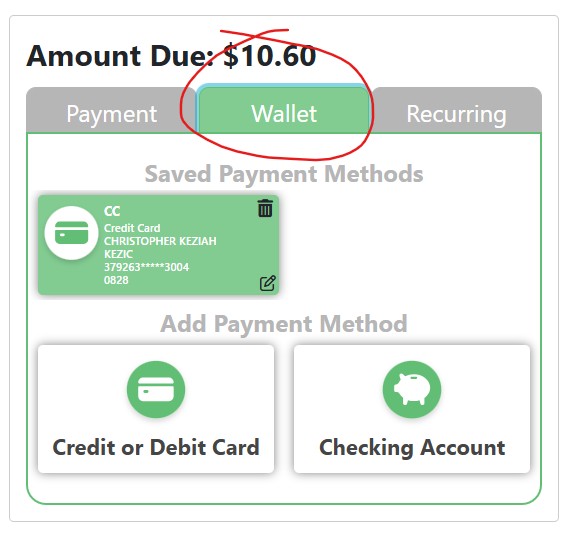
Once you’ve added a card or account click “Save to Wallet”
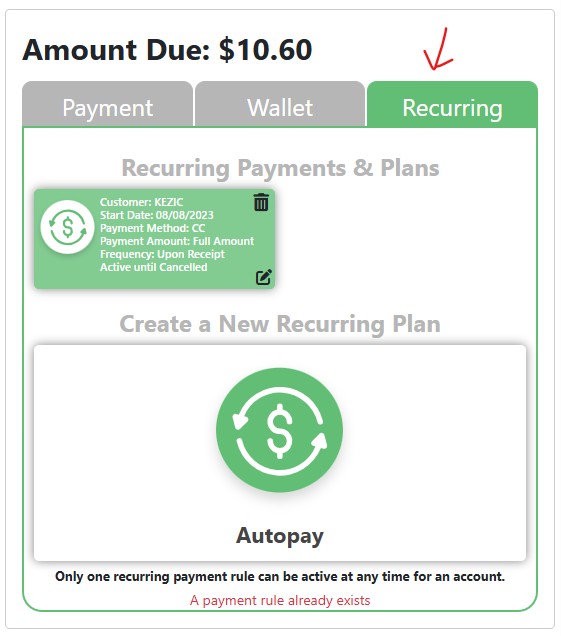
To set up autopay, click “Recurring at the top and follow the instructions.
For additional questions or problems, please email us at [email protected] or send a contact form through burkespharmacy.com/contact